Payments
How to Set Up a Decentralized Cloud VM with Aleph CLI
Deploy a decentralized VM in 10 minutes with Aleph Cloud's Rust CLI. Install, fund with USDC/ALEPH, launch Ubuntu instances for ~$10/month, and SSH in. No Python, no centralized cloud.
10 min. read -
Table of contents
Install CLI
Set up your account
Fund your account
Buy credits
Check credits
Launch Aleph Cloud instance
Connect
Aleph Cloud’s new Rust-based CLI lets you deploy decentralized virtual machines in minutes—no Python dependencies, no centralized infrastructure. This tutorial walks you through installing the CLI, funding your account with cryptocurrency, and launching your first censorship-resistant Ubuntu VM with SSH access.
What you’ll learn:
Prerequisites: Basic terminal knowledge, 10 USDC + 0.01 ETH for gas (or equivalent in ALEPH for 20% bonus credits)
One of the tools that was missing from the Aleph Cloud toolkit was a CLI that’s fast, reliable and easy to install. Say goodbye to the slow Python CLI, we rewrote it in Rust and added lots of new features.
The goal of this tutorial is to get you familiar with the basic concepts of the CLI:
Ubuntu/Debian
The CLI is provided as an apt package that you can install by downloading and executing the install script here:
curl -fsSL https://apt.aleph.im/install.sh | sudo bashmacOS
On macOS, the CLI can be installed with Homebrew:
brew install aleph-im/tap/aleph-cliWindows
For Windows users, you can download the CLI from the Github release page. For the current version, use this link: https://github.com/aleph-im/aleph-rs/releases/download/v0.10.0/aleph-cli-windows-x86_64.exe.
Build from source
You can also install the CLI by using cargo install aleph-cli or cloning the Github repository and rebuilding from source: https://github.com/aleph-im/aleph-rs.
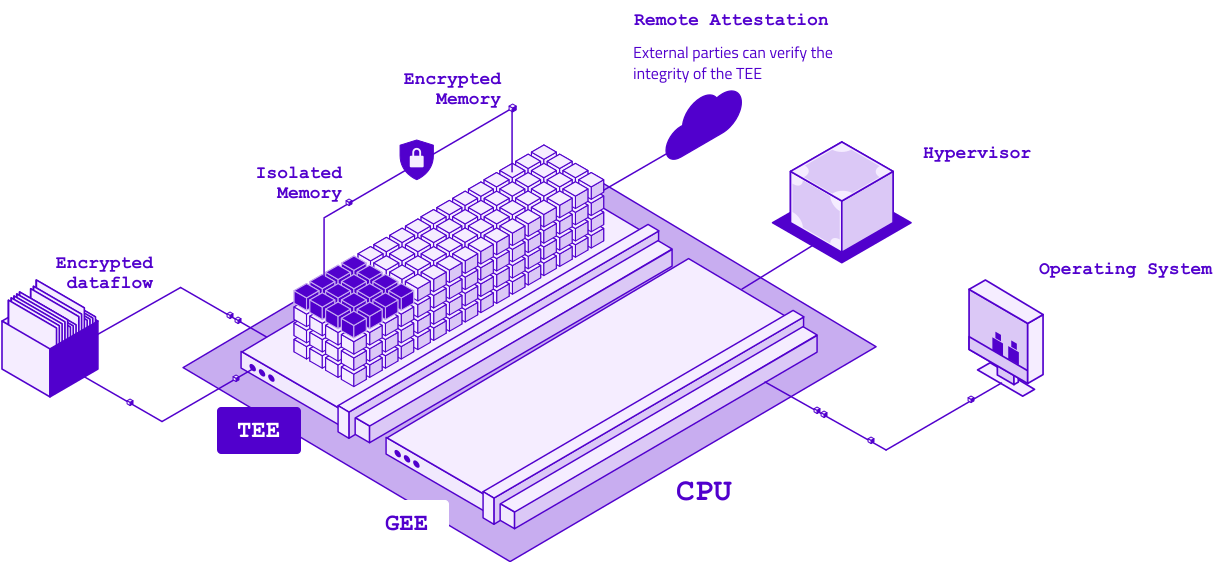
Deploy your own confidential VM
Follow our guide to set up secure, AMD SEV-powered Confidential Virtual Machines and protect your data.
An Aleph Cloud account is a local signing key, stored in your OS keychain (libsecret on Linux, Keychain on macOS, Credential Manager on Windows). The CLI handles creating or importing keys directly from the CLI.
Create a new account
$ aleph account create vm-quickstart
Account 'vm-quickstart' created.
  Chain:   eth
  Address: 0x9c3b1a4f7a2e0d8b6c5a4f3e2d1c0b9a8f7e6d5c
Import an existing account
If you already have a private key on your filesystem, you can import it:
# Import from a file
$ aleph account import --from-file ./path/to/your/key vm-quickstart

# Or copy-paste your key
$ aleph account import --private-key 0x... vm-quickstart
The CLI also supports Ledger devices. To import a Ledger account, use the following steps:
If you used the previous aleph CLI (the Python one), you can migrate your accounts in one step by using aleph account migrate.
Set your account as the default and check your balance
All the commands of the CLI that require authentication support an explicit --account flag. To skip it, you can set an account as the default:
aleph account use vm-quickstartYou can now check your balance using aleph account show . If you just created this account, it should show 0 credits and 0 ALEPH tokens:
$ aleph account show
Name:    vm-quickstart
Chain:   ETH
Address: 0x597CCbeD24800Ca64AF696644d25E0333D5bd7fD
Type:    local
Default: yes
ALEPH:   0.0000 (locked: 0.0000)
Credits: 0 ($0.00)To buy credits with your brand new account, you first need to fund this account with either ALEPH tokens or USDC.
If you already have tokens on an Ethereum account, simply transfer them to the public address of your account that is displayed in the output of aleph account show. Alternatively, you can buy tokens on any centralized exchange and withdraw them to your new account.
Let’s use USDC for now, and send yourself at least 10 USDC. You’ll also need a minimal amount of ETH (<0.01 ETH) to pay for gas fees when buying credits.
You can buy credits with ALEPH instead of USDC and get 20% additional credits.
You can now buy credits through the CLI. aleph credit buy signs and submits an ERC-20 transfer to the network’s credit contract; the protocol watches that contract and mints credits to your address once the transfer is confirmed.
$ aleph credit buy --token usdc --amount 10
Buying credits with 10 USDC
Estimated credits: ~10000000
Recipient: 0x...credit_contract...

? Submit transaction? Yes

Transaction submitted: 0x3f...
https://etherscan.io/tx/0x3f...
If you’d rather pay with ALEPH and pocket the 20% boost, swap --token usdc for --token aleph. Everything else is identical.
Your credits should be available within less than a minute. Check your balance until your credits appear:
$ aleph account balance
Address: 0x9c3b1a4f7a2e0d8b6c5a4f3e2d1c0b9a8f7e6d5c
ALEPH:   0.0000 (locked: 0.0000)
Credits: 10000000 ($10.00)An instance is the name for Virtual Private Servers (VPS) or managed VMs on Aleph Cloud. To finish this tutorial, we’ll create such an instance and show how you can log into it.
Let’s first check what an instance would cost:
$ aleph instance price --size 1vcpu-2gb
Size:    1vcpu-2gb
vCPUs:   1
Memory:  2048 MiB
Disk:    20480 MiB
Cost:    14250 credits/hour ($0.0142/hour)
A bit over a cent an hour, so roughly $10 a month if you leave it on 24/7. The credits we just bought should cover one month of usage, give or take.
To log into your instance, you’ll need an SSH key to log in. We need to specify the key when creating the instance. If you do not have one yet, follow this tutorial to create one. We’ll assume that your public SSH key is located at ~/.ssh/id_ed25519.pub.
Now, let’s create the instance:
$ aleph instance create my-vm \
    --image ubuntu24 \
    --size 1vcpu-2gb \
    --ssh-pubkey-file ~/.ssh/id_ed25519.pub
Size '1vcpu-2gb': 1 vCPUs, 2048 MiB memory, 20480 MiB disk
Message processed (INSTANCE)
  Item hash: 4c2f8a1e9b7d6c5a4f3e2d1c0b9a8f7e6d5c4b3a2918374651827364519283746
  Sender:    0x9c3b1a4f7a2e0d8b6c5a4f3e2d1c0b9a8f7e6d5c
  Explorer:  https://api.aleph.im/api/v0/messages/4c2f8a1e9b7d...
That submitted an instance message to the network. The scheduler picks unallocated VMs up and dispatches them to a Compute Resource Node (CRN) within a minute or two. If you’d rather pick the CRN yourself (a specific region, a known-good operator), pass -i / --interactive and the CLI will walk you through.
Wait a minute, then list your instances:
$ aleph instance list
ITEM_HASH NAME OWNER STATUS      ALLOCATED
4c2f8a1e9b7d  my-vm 0x9c3b1a4f7a2e0d8b6c5a4f3e2d1c0b9a8f7e6d5c
dispatched crn:d704be0b
The Aleph Cloud node automatically allocate an IPv6 address to your instance, and this is what we will use to connect to it. Once STATUS reads dispatched, the VM is live on the CRN shown in the ALLOCATED column.
SSH in with the 12-character hash prefix from the first column:
$ aleph instance ssh 4c2f8a1e9b7d
Welcome to Ubuntu 24.04 LTS (GNU/Linux 6.8.0-aleph x86_64)
...
ubuntu@my-vm:~$
The default user is root; pass --user ubuntu for the Ubuntu presets. If you need to forward an explicit identity file or extra ssh flags, --identity ~/.ssh/id_ed25519 and trailing args after -- both work:
aleph instance ssh 4c2f8a1e9b7d --user ubuntu -- uptimeThat last form is handy for scripting (no interactive shell, just runs the command and exits).
And here you go, you can now use your instance for anything you’d like!
“That’s all nice and well, but I don’t want a VM right now. How do I delete it?”
If you wish to delete your instance, you’ll first need to find the complete VM ID (the one we used before was a shortened version). Use aleph instance list --json to find it, and then run aleph message forget to delete it.
What just happened:
A few things worth knowing for next time:
- aleph instance stop stops the VM (but not the billing!); aleph instance start brings it back on the same CRN. aleph instance erase deletes the VM’s data on the CRN entirely.--json for scripting and --help with worked examples.heph with pre-seeded balances. cargo install heph, then point the CLI at http://127.0.0.1:4024 with --ccn.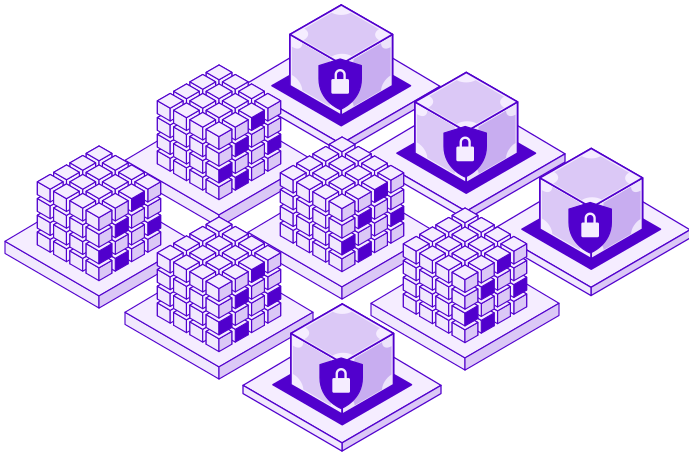
Discover Secure Computing with Aleph Cloud
Dive into our docs and see how you can deploy AMD SEV-powered CVMs in minutes.
Payments
Deploy a decentralized VM in 10 minutes with Aleph Cloud's Rust CLI. Install, fund with USDC/ALEPH, launch Ubuntu instances for ~$10/month, and SSH in. No Python, no centralized cloud.
Computing
Aleph tokenomics introduces a dual-stream rewards model for decentralized cloud operators: a transitional reward floor plus a usage-based revenue share.
Payments
Pay As You Go and Holder Tier payments are officially deprecated. Aleph Cloud now runs on a single credit system. Top up with USDC, fiat, or ALEPH and pay for what you use.

Virtual Machines
Explore how OpenClaw AI agents, and Aleph Cloud’s decentralized AI Supercloud are redefining autonomous computing with sovereign, censorship-resistant infrastructure.